

Your help desk tech clicks Wipe on a laptop that walked out of a client's office. The console says pending. An hour later it still says pending. On Monday morning it says pending, and someone from legal asks whether the data on that laptop is gone.
That's the part of an Intune wipe the documentation doesn't dwell on. Microsoft Learn explains every button in detail; what it treats as a footnote is time. Every Intune device action is a request, not an event. The device carries it out when it checks in, and the gap between "sent" and "done" is exactly where your data is exposed.
This guide covers both halves. First, what Wipe, Retire, Fresh Start, Autopilot Reset and Delete actually do, so you pick the right one. Then, how long an Intune wipe takes in practice, why it gets stuck on pending, and what you can do while you wait.
What's the difference between Intune wipe, retire, fresh start, Autopilot Reset and delete?
When you're staring at the Remove data menu with a ticket open, the short version is this: Wipe factory-resets the device, Retire removes only company data and management, Fresh Start strips apps from a Windows PC, Autopilot Reset readies a PC for the next user, and Delete hides the record. All of them depend on the device checking in.
The names overlap enough to cause real mistakes: retire a corporate laptop expecting a clean device and the user's files are still there; wipe a contractor's personal iPad and their photos are gone. Pin this table next to the console.
Two details from that table tend to surprise people. First, Delete isn't a passive cleanup. According to Microsoft's Delete documentation, deleting a Windows, macOS or iOS device triggers a Retire, and deleting a corporate-owned Android device triggers a Wipe. Second, Microsoft states that a Delete reported as Completed "doesn't confirm that the client device finished the Retire." The server is done. The device may not have heard about it yet.
There are also daily ceilings. A tenant can submit up to 500 Wipe actions and 1,000 Retire actions per day, counted across single-device actions, bulk actions and Graph API calls. That rarely matters for one stolen laptop, but it matters when an MSP is offboarding a whole client or a school is resetting a cart of devices at the end of the year.
What does an Intune wipe actually remove?
An Intune wipe is a factory reset: it removes personal and organizational data, apps and configuration, and returns the device to default settings. On Windows you can change that with options to keep enrollment and user data, or to keep wiping through a power loss. Each platform adds its own prerequisites.
Picture the person who'll get this device next, or the person who lost it. Those two people need very different wipes, and Windows gives you three ways to run one, each mapped to a different RemoteWipe CSP node:
Wipe device, but keep enrollment state and associated user account. Resets the device while keeping user data and accounts. MDM policies are removed, but the device stays enrolled in Intune. Useful for troubleshooting a machine that still belongs to the same person.
Wipe device, and continue to wipe even if device loses power. Deletes everything and overwrites free space so data can't be recovered. Microsoft warns this option "can prevent some devices from starting up again," so reserve it for corporate hardware you're prepared to reimage, such as a stolen device.
No options selected. Deletes all user data, settings and policies. If the wipe is interrupted, the device tries to roll back to its previous state.
Other platforms have their own catches. On a Mac without a T2 chip (typically 2018 or earlier), Intune asks for a six-digit Recovery PIN that you'll need to reinstall macOS, and it won't be visible after the wipe. On ChromeOS, deprovision the device before a powerwash or it re-enrolls the next time it joins Wi-Fi. On Samsung devices, if Factory Reset is set to Block in device restrictions, a wipe can't complete and the device loses contact with Intune. On Zebra Android devices, Wipe removes only corporate data. The full list lives in Microsoft's wipe documentation.
Then there's encryption. If the device is a BitLocker-protected Windows laptop, the recovery key is your safety net for every scenario where something goes wrong mid-reset. If you're fuzzy on where keys live, our guide on finding a BitLocker recovery key walks through the Entra ID and Intune console paths, and this BitLocker explainer covers what encryption protects when a wipe can't reach the device.
Quick win: before your next wipe, open the device record and confirm three things: the BitLocker recovery key is escrowed, you know whether the device is Autopilot-registered, and you've decided whether you need the device's location before erasing it. Wiping first and asking later destroys evidence you might want.
Retire vs wipe: when should you keep the device's personal data?
HR emails on a Thursday: a leaver's laptop and phone need to be "cleaned." Use Retire when the device belongs to the person, like a BYOD phone, and Wipe when it belongs to you and must come back blank. Retire removes company apps, data and management, keeps personal data, and runs at the next check-in.
Retire is the right call for personally owned devices. On an iPhone, it removes apps installed through Company Portal, Wi-Fi and VPN profiles, certificates, managed email and the management profile, while leaving the user's photos and personal apps alone. On an Android personally owned work profile, it removes everything inside the work profile. That's exactly what you want when a contractor leaves with their own phone. Our guide to managing BYOD with MDM goes deeper on where that line sits.
Retire on a corporate Windows laptop is where people get burned. Here's the scenario: a sales rep leaves, the laptop is Entra-joined and BitLocker-protected, and someone retires it instead of wiping it. Microsoft's Retire documentation spells out what happens next.
Intune removes the BitLocker key protectors and suspends BitLocker as a safeguard. The device is unjoined from Entra ID, so nobody can sign in with an Entra account anymore. To reach the local data, you'd boot into Safe Mode with a local admin account you may not have. And Win32 apps installed by the Intune management extension stay installed.
So the corporate laptop ends up neither clean nor managed. If you want it back for the next hire, wipe it. If you need the data on it first, collect that before you touch either button. An IT offboarding checklist for remote employees helps sequence this so the laptop comes back before access goes away.
Timing matters here too. In 30% of the first batch of Prey demos we analyzed, offboarding friction came up: an ex-employee keeping or clearing data faster than IT could act. A Retire that lands only at the next check-in doesn't help if the laptop sits in a drawer at the former employee's home.
Quick win: write a one-line rule into your offboarding runbook: "Personal device → Retire. Company device → collect data, then Wipe." Back up the BitLocker key and local admin credentials before either action on Entra-joined Windows devices.
Fresh Start or Autopilot Reset for the next hire?
When the laptop is coming back to the shelf for someone new, both are for Windows only. Fresh Start removes apps, including OEM bloatware, and can keep the user's files and Entra join. Autopilot Reset removes personal files, apps and settings but keeps the device's Entra and Intune connection. Pick Fresh Start for cleanup and Autopilot Reset for handover.
Picture a help desk lead with three laptops back from leavers and three new hires starting Monday. Autopilot Reset is built for that. Per Microsoft's Autopilot Reset documentation, it removes personal files, apps and settings, reapplies the device's original settings, and keeps Wi-Fi details, provisioning packages, SCEP certificates and the Entra and Intune enrollment. The next user signs in and the device sets itself up.
Two requirements trip people up: the Windows Recovery Environment must be enabled (the reset fails immediately otherwise), and it doesn't support Microsoft Entra hybrid joined devices. For hybrid devices, Microsoft says a full wipe is required, and the device can take up to 24 hours to be ready to deploy again.
Fresh Start is for a new PC loaded with OEM apps, or a machine that's become sluggish. With "Retain user data on this device" selected, it keeps the device Entra-joined, preserves the user's Home folder and re-enrolls in MDM when the user signs in. Without it, the device goes back to the out-of-box experience completed state with the built-in administrator account, and BYOD devices drop out of Entra ID and MDM entirely.
The decision rule fits on a sticky note. Same user, device feels broken: Fresh Start with user data. New user, device is cloud-only joined: Autopilot Reset. New user, device is hybrid-joined, or the device left the building: Wipe. If you run a pool of shared or loaned devices, the loaner device management guide covers the tracking side of that handover.
How long does an Intune wipe take, and why does it sit on pending?
A stolen laptop has every reason to stay offline. An Intune wipe doesn't run when you click it: the device runs it at its next check-in, so timing depends on whether it's online, awake and reachable. A connected device often starts within minutes. An offline one stays pending until it reconnects, maybe never.
Microsoft's wording on Retire states the mechanism plainly: "The action is triggered the next time the device checks in with Intune." Wipes are delivered the same way, which is why "Intune wipe stuck on pending forever" keeps showing up on Microsoft Q&A and the Intune subreddit. Pending usually isn't a bug; the device just hasn't received the command. And if your tenant requires Multiple Administrative Approval for wipes, the command doesn't even leave Intune until a second admin approves it.
Even when the device is online, "minutes" is an expectation, not a promise. In one Prey demo, an MSP serving legal, investment and healthcare clients told us that when testing Intune, "a remote wipe took 34 minutes to initiate." That's one observed case, not a benchmark, but it isn't isolated: across 64 analyzed demos, roughly 1 in 5 prospects said some version of "my current tool takes forever to respond." A G2 reviewer in construction put the location side of the same problem bluntly: "We may use Intune, yet adding location services on that, it takes forever by the time the device is located."
Now the Friday-night version. A laptop is taken from a car at 6 p.m. Your on-call tech sends the Intune wipe at 6:40. The thief doesn't open the lid, or opens it without joining a network the device can use. The console shows pending all weekend. Meanwhile your compliance lead needs to know one thing: is the data on that device protected? "Wipe sent" doesn't answer that. What answers it is the device's encryption status and, eventually, a completion status from the device itself.
Can you stop a pending wipe? Microsoft's wipe documentation doesn't describe a cancel option, so don't build your process around one. Once the device receives the command and starts the reset, there's no undo. Check the device's action status in your tenant, and treat a pending wipe as an open incident, not a closed ticket.
Quick win: before sending a wipe, check the device's last check-in time in the Intune console. If it hasn't checked in for days, the wipe will queue, and your next steps are about containment (encryption, credentials, location), not about waiting. Then add a compliance policy that flags devices not seen in a set number of days so you find stale devices before they're lost.
What to do while an Intune wipe is pending
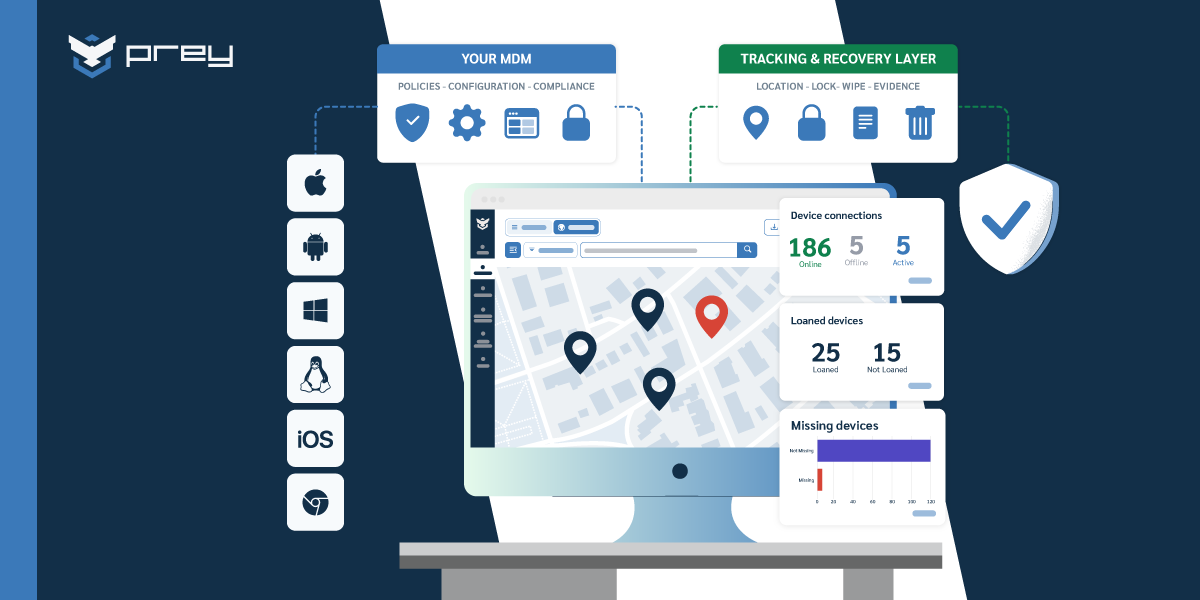
Your on-call tech has a pending wipe and a manager asking for an update. Intune manages your devices; a tracking and recovery layer tells you where they are and what you can still do while the wipe waits. This order of operations holds up whatever tools you use.
1. Confirm encryption first. If the drive is encrypted and the key isn't on the device, the exposure is limited even if the wipe never lands. This is the one control that works when nothing can reach the device.
2. Find the last known location and history. Before you erase anything, find out where the device was last seen. Intune's location features are limited and largely tied to specific platforms and settings, a gap we covered in detail in what Intune can and can't locate. A device's location history is often what turns "lost" into "found under a desk at the client site," and it's evidence if the device was stolen. Our guide on how to recover a stolen laptop covers the police side.
3. Lock before you wipe when recovery or evidence matters. A locked device protects the data and keeps the device findable. A wiped device protects the data and usually ends the trail.
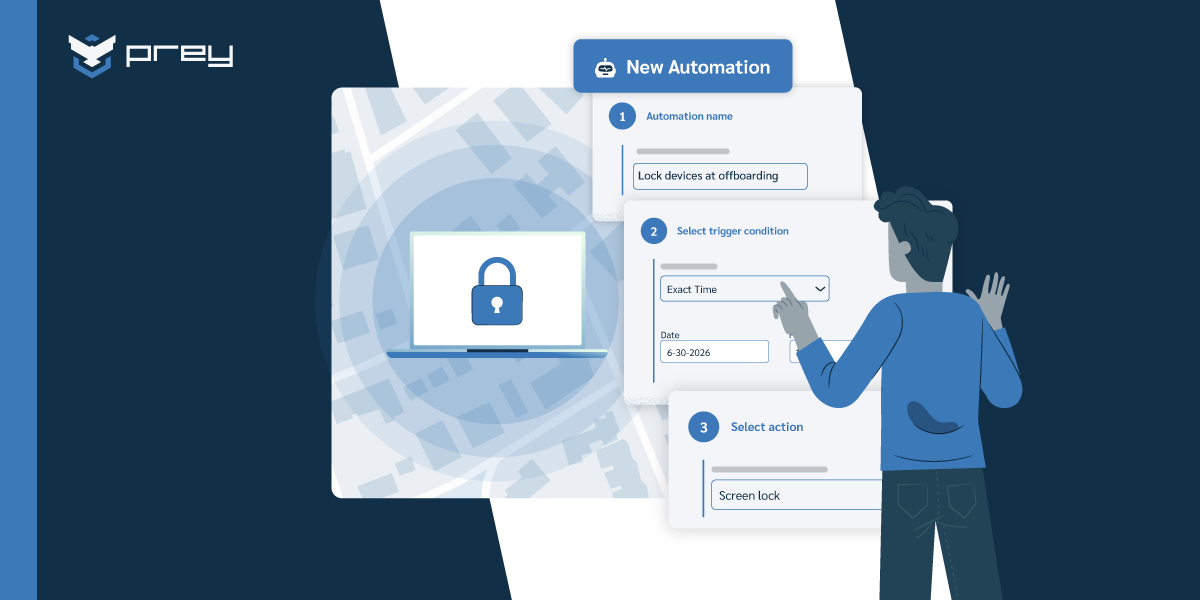
4. Queue the wipe and record the result. Send the command so it lands when the device reconnects. For HIPAA, GDPR or an internal audit, what counts is the encryption state and a completion status, not a screenshot of a button you clicked.
This is where Prey fits in a lot of Intune shops. In our demos, buyers increasingly arrive already running Intune and looking for one missing piece; of the roughly 19 demos where we could identify the stack, about 1 in 3 were already running two or more management tools.
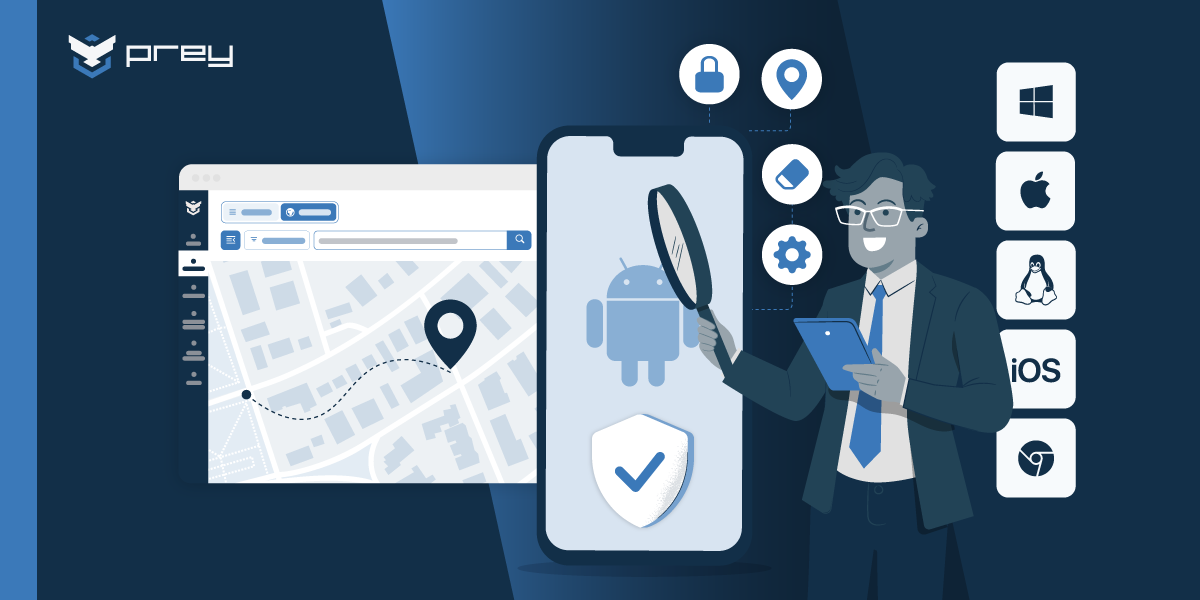
Prey doesn't replace Intune's policies, enrollment or app management (here's what each tool covers). It adds the recovery layer: always-on location tracking and location history across Windows, macOS, Linux, Android, iOS and Chromebook; remote lock; remote wipe and full Windows factory reset with a visible status (pending, in progress, completed); and Control Zones that alert you when a device leaves an area. Commands queue on the server and land as soon as the device's agent reaches the network again, wherever that happens.
Be clear about the limits, because your auditors will be. No software agent, Prey's included, reaches a powered-off device or survives a full OS reinstall. What changes is what you can do in the window: see where the device is, lock it when it surfaces, and know whether the wipe ran. For the generic mechanics of how queued commands work, see how remote wipe works. For running two tools without stepping on each other, see running a specialist tool next to your MDM.
Quick win: pick one recent lost-device ticket and replay it against these four steps. Where did you lose time: finding the device, deciding between lock and wipe, or confirming the wipe completed? That's the gap to close first.
Sent isn't done
Intune gives you the right buttons: Wipe for corporate devices that must come back blank, Retire for personal ones, Fresh Start for cleanup, Autopilot Reset for handover, Delete for records you're done with. But the button isn't the control. Every one of these actions is a request that waits for the device, and the time between clicking and completing is where data is exposed and audits get awkward. Treat that window as part of the incident: encryption as the backstop, location before erasure, lock when you need the device back, and a completion status as your proof. That's the difference between a wipe you sent and a wipe you can show happened. If you want to see how the two tools compare side by side, here's how Prey and Intune compare, and what one unrecovered device actually costs is broken down in the hidden costs of lost corporate devices.
Frequently asked questions
How long does an Intune wipe take?
An Intune wipe starts when the device next checks in with Intune, not when you click. A device that's online often starts within minutes, though one MSP reported a remote wipe taking 34 minutes to initiate. An offline or powered-off device stays pending until it reconnects.
Can you stop or cancel a pending Intune wipe?
Microsoft's wipe documentation doesn't describe a way to cancel a pending wipe, so don't plan on one. Once the device receives the command and starts the reset, it can't be undone. If you might need the device or its data, lock it first and wipe later.
Can Intune wipe a personal device?
Not always. Microsoft lists Wipe for corporate-owned Android Enterprise modes, not for personally owned work profiles. For personal devices, use Retire or an app-level selective wipe instead, which removes company data and apps while leaving personal data in place. A full wipe on a personal device erases the owner's photos and files.
What's the difference between Intune Wipe and Fresh Start?
Wipe factory-resets the device across most platforms and removes all data, apps and settings unless you choose to keep enrollment and user data. Fresh Start is Windows-only and focuses on removing apps, including OEM bloatware. With user data retained, Fresh Start keeps the Entra join and the user's Home folder.
Does an Intune wipe work if the device is offline?
No. An offline device can't receive the command, so the wipe stays pending until the device reconnects to a network and checks in. In the meantime, full-disk encryption protects the data, and a tracking tool can show the device's last known location.
See how fast a lock or wipe lands on your own fleet. Book a demo and watch Prey locate, lock and wipe a device alongside your Intune setup. Get started.